How to reduce AVIF file size without changing the format
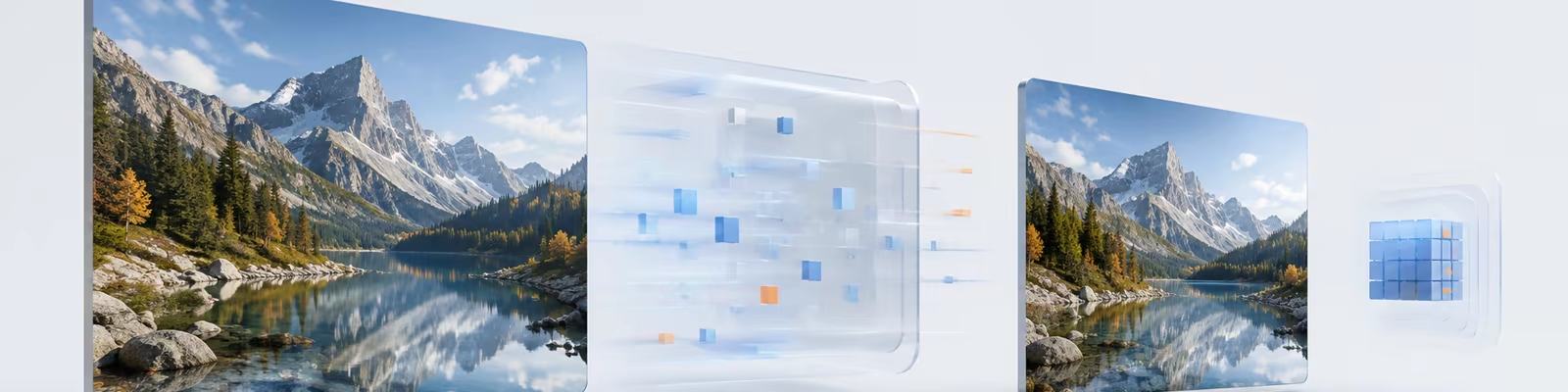
AVIF is already a compact image format. That does not mean every AVIF file is finished. Design tools and export scripts often choose cautious quality settings, and a cautious export can still leave a hero image or product gallery heavier than it needs to be.
The useful question is not whether AVIF can be compressed again. It can. The question is how to reduce AVIF file size without accidentally changing the dimensions, converting it to another format, or accepting damage you only notice after the image is live.
Start with the dimensions users actually see
Compression cannot make unnecessary pixels useful. If an image is displayed at 1200 pixels wide but the source is 4000 pixels wide, resizing usually matters more than another pass through an encoder.
Check the largest rendered size in your layout, including high-density screens. Then export close to that requirement. Keep the original somewhere outside the delivery folder so you can return to it later; the web copy is a derivative, not your archive.
There are good reasons to keep a larger source. Responsive images may need multiple widths, and a zoomable product viewer needs more detail than a static card. The point is to make the decision deliberately. Do not send every visitor the master file just because it was the easiest file to drag into the project.
Recompress AVIF without converting it
Once the dimensions are right, use an AVIF compressor that returns AVIF. This sounds obvious, but some tools treat “compress AVIF” as “accept AVIF input” and quietly export WebP or JPG instead.
PiPic follows a simpler contract: AVIF goes in and optimized AVIF comes back, with the same width and height. The free AVIF compressor accepts one file or a batch of up to 100, with each file up to 8 MB. When the batch is finished, you can download files individually or take the whole set as one ZIP.
The workflow is short:
- Drop the AVIF files into the compressor.
- Wait for the before-and-after size shown beside each file.
- Download the smaller result and compare it with the original.
- Keep the original when the result is not meaningfully smaller or the visual trade-off is not worth it.
PiPic keeps the original whenever a compressed result would be larger. That is important with AVIF because a file that has already been carefully optimized may have little left to remove.
Check quality instead of trusting a promise
AVIF supports both lossy and lossless compression. In practical web delivery, lossy encoding is common because that is where much of the size reduction comes from. “No quality loss” is therefore the wrong promise to look for. The honest test is whether the change is visible in the way the image will actually be used.
Compare at the rendered size first, then zoom in on the areas most likely to show damage:
- gradients and dark shadows;
- skin, hair, foliage, and other fine texture;
- sharp edges around text or interface screenshots;
- transparency and soft edges;
- saturated colors and highlights.
Do not judge only from the file-size number. A smaller file is a win only when it still does the job. If the image is the main visual on a landing page, spend an extra minute checking it. If it is a small thumbnail, the rendered-size check may be enough.
Keep a fallback when your audience needs one
AVIF works in current Chrome, Edge, Firefox, Opera, and Safari releases. Its history is shorter than JPEG or PNG, though, and old software may still fail to open it. MDN therefore recommends providing a fallback when broader historical support matters; its image format guide shows how AVIF compares with the older formats.
For a website, the <picture> element lets the browser choose AVIF first and a
WebP or JPEG alternative when necessary:
<picture>
  <source srcset="hero.avif" type="image/avif" />
  <source srcset="hero.webp" type="image/webp" />
  <img src="hero.jpg" width="1200" height="800" alt="" />
</picture>
Keep the width and height attributes. They help the browser reserve space
before the image arrives, which avoids layout movement. Also make sure the
fallback is genuinely available; a <source> line pointing to a missing file is
not compatibility.
Treat a batch as a shipping step
One optimized hero image helps. A repeatable process helps more. Before shipping a page, collect its AVIF assets, compress them as one batch, and check the largest few results rather than opening files at random.
Use a small checklist:
- dimensions match the largest rendered use;
- output remains
.avifwithimage/avifwhen served; - the before-and-after difference is worth keeping;
- important edges, gradients, and transparency still look right;
- responsive variants and fallbacks exist where the audience requires them;
- the deployed response has sensible cache headers.
If the same assets live in a repository or build pipeline, the PiPic Agent CLI can make compression part of that workflow. For a one-off folder, the browser is usually faster: drop the files, inspect the results, and take the ZIP.
AVIF is efficient, not magical. Give it the right dimensions, recompress it without changing formats, and verify what people will actually see. That is how you get a smaller AVIF file without turning optimization into guesswork.